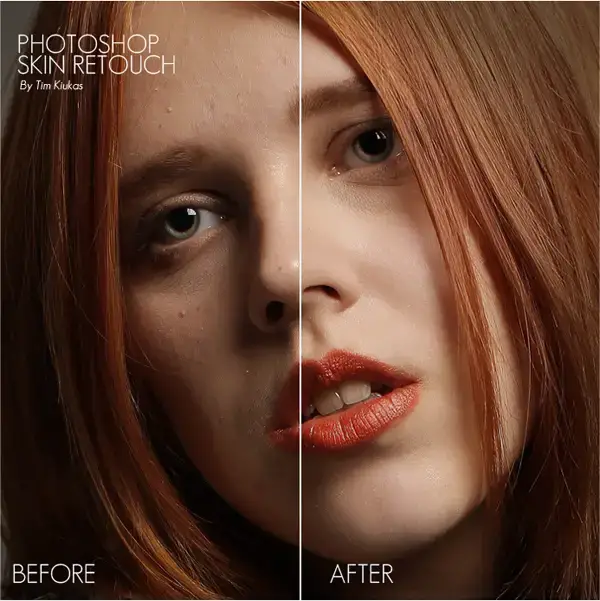
50 Portrait Retouching Tutorials To Take Your Photoshop Skills To A New Level

 3. Retouch images in Photoshop with frequency separation

4. Photoshop CS6 Presets: Photographic Toning Retouch Method

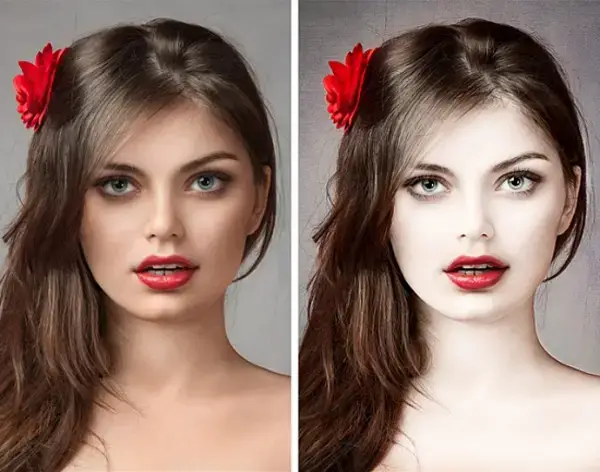
5. How to Create a Porcelain Skin Effect in Adobe Photshop CS6 (Exclusive Tutorial)
6. Video Tutorial: Harmonise Tricky Tones and Colors
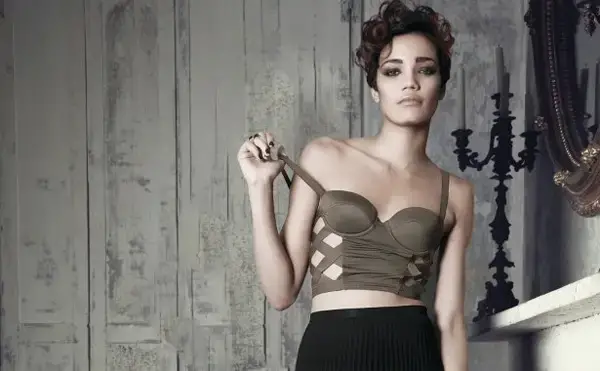
 

8. Video tutorial: Control tonality with Photoshop’s Black & White filter
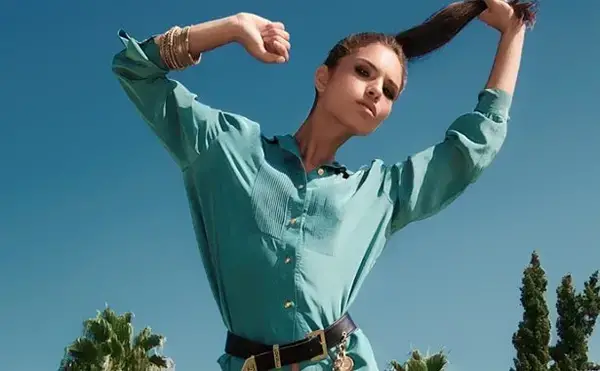
9. Photoshop Tutorial: Wrinkle Reduction
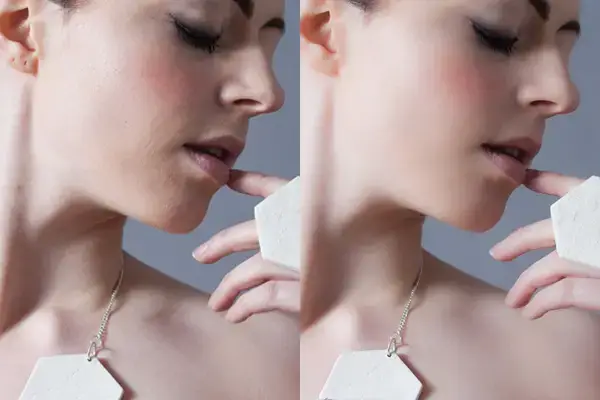
10. Video Tutorial: Enhance Detail Using Correction

11. Superb Skin Airbrush Technique
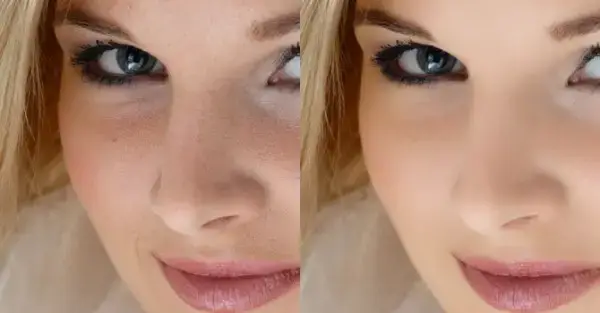
12. Super Fast and Easy Facial Retouching
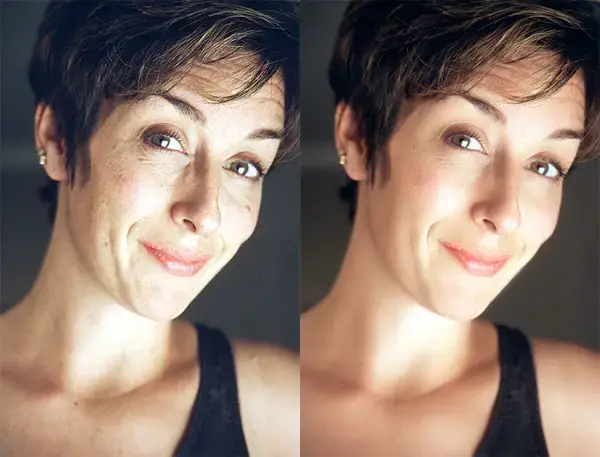
13. How to Create a Glamour Style Composition Using Patterns and Masks
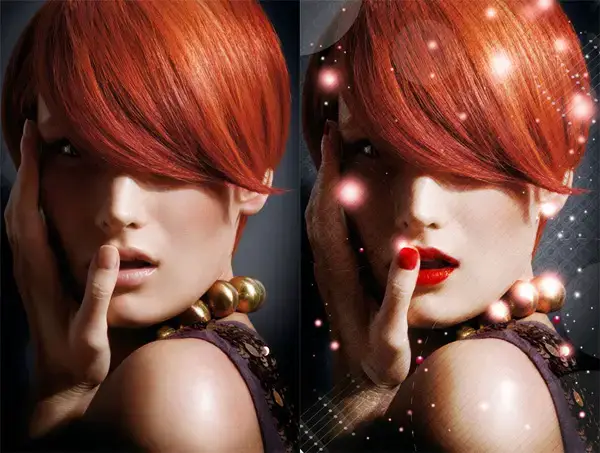
14. How to Apply Makeup to a Model in Post-Production Using Adobe Photoshop
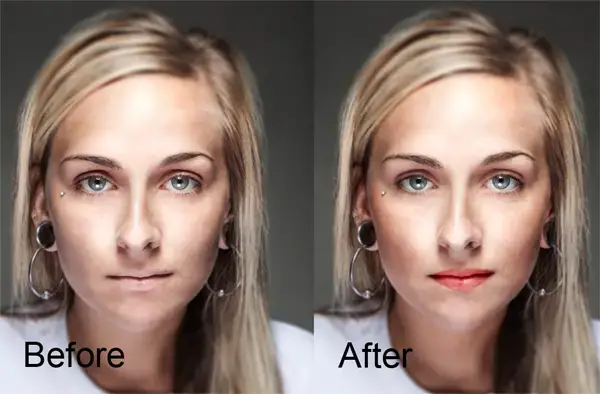
15. Skin Retouching Actions Preview
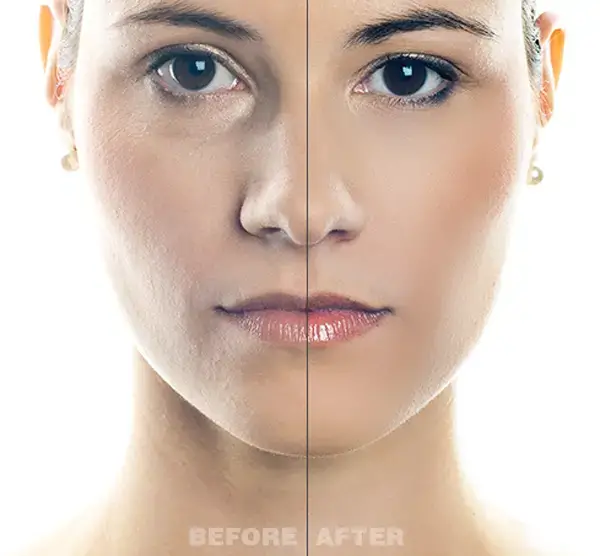
16. Photoshop Fashion Retouch – Shadowy, Sultry Eyes
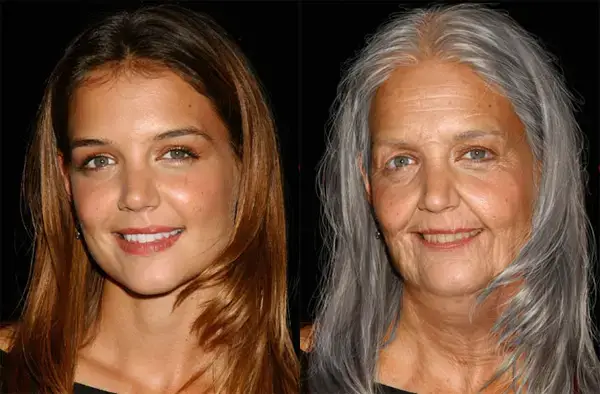
17. Age Progression – Photoshop Tutorials
18. Easy Facial Retouch using Photoshop
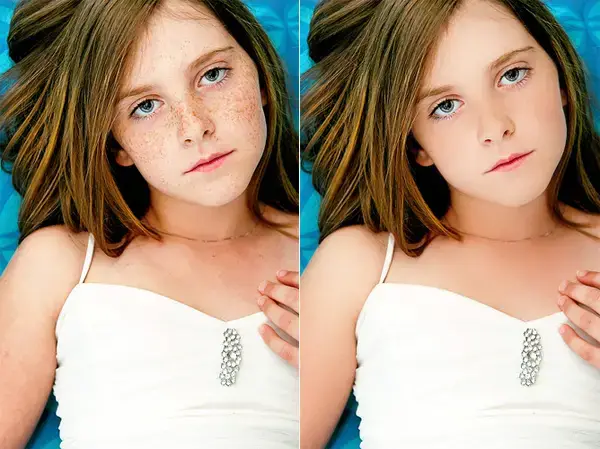
19. Professional Retouching Tutorial: Healing
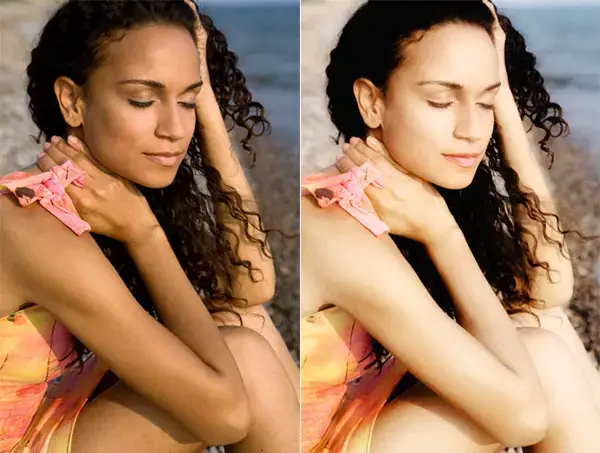
20. Professional Photograph Restoration Workflow
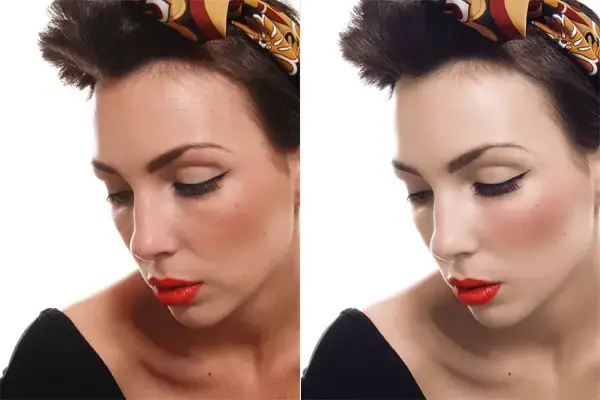
21. Professional Photograph Restoration Workflow
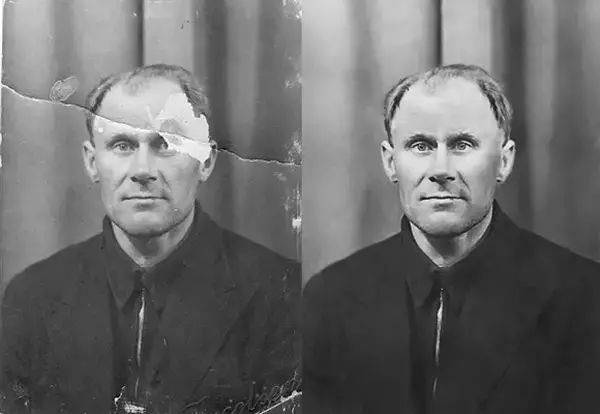
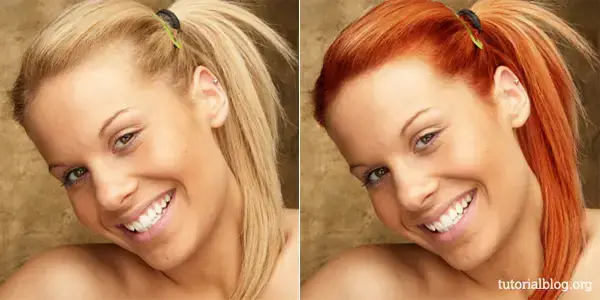
22. Photo Retouching – Change Hair Color Photoshop Tutorial
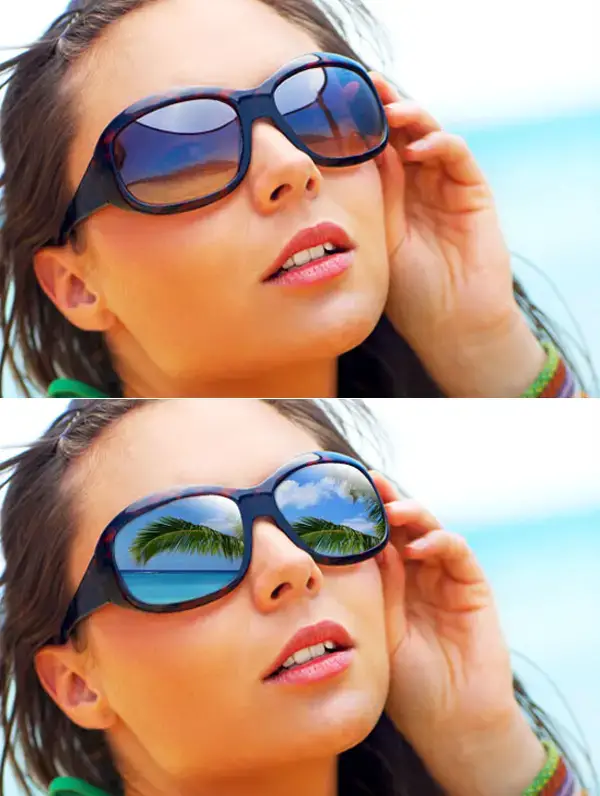
23. Adding Reflections To Sunglasses With Photoshop
24. Contrast Layers

25. Skin Retouching Tutorial

26. How to Make Yourself Stunning with Digital Retouching in Photoshop

27. Black & White Is the Key to Better Color
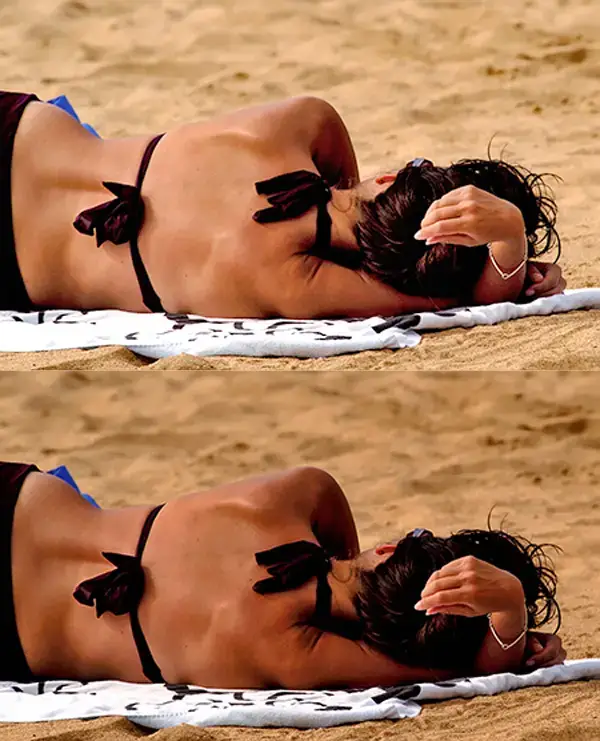
 

29. Dramatic Skin Retouching Technique (Premium Tutorial)
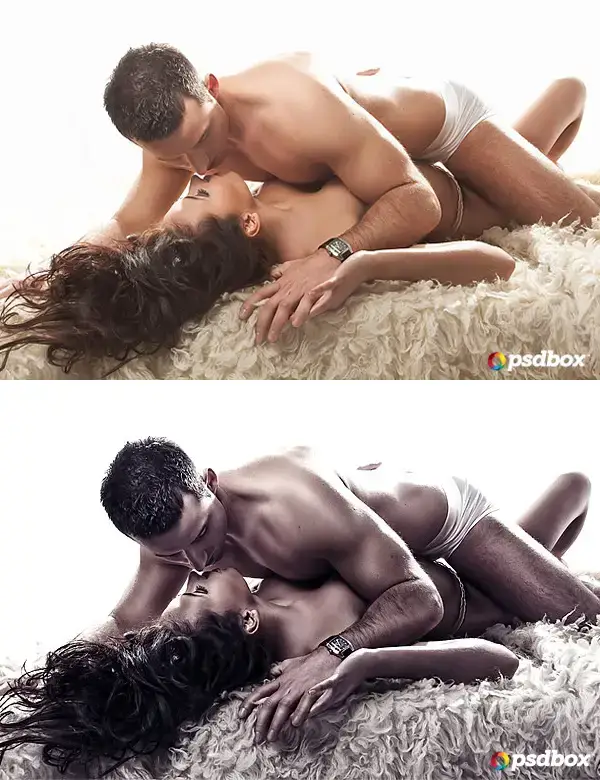
30. Make Bright Eyes in Photoshop

31. Redhead Girl With Freckles Retouch – Photoshop CS6 Tutorial
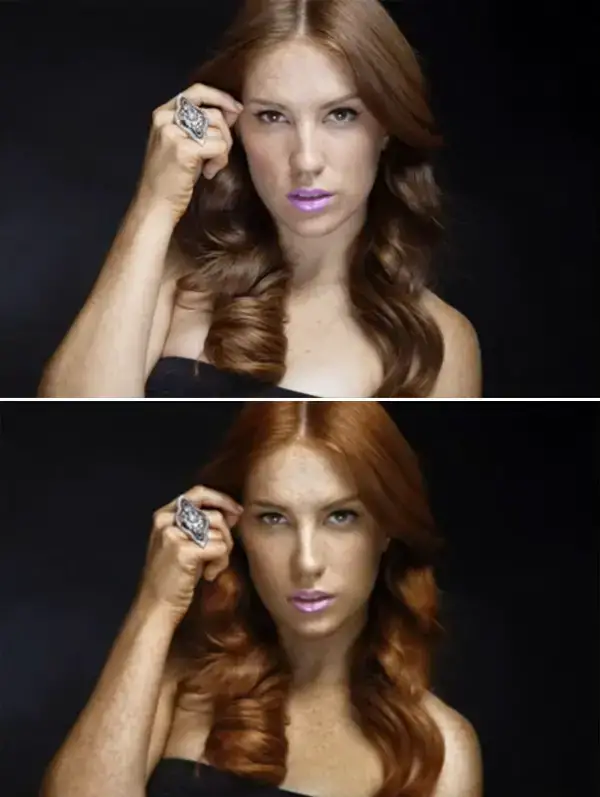
32. Video Tutorial: Non-Destructive Burn/Dodge in Photoshop
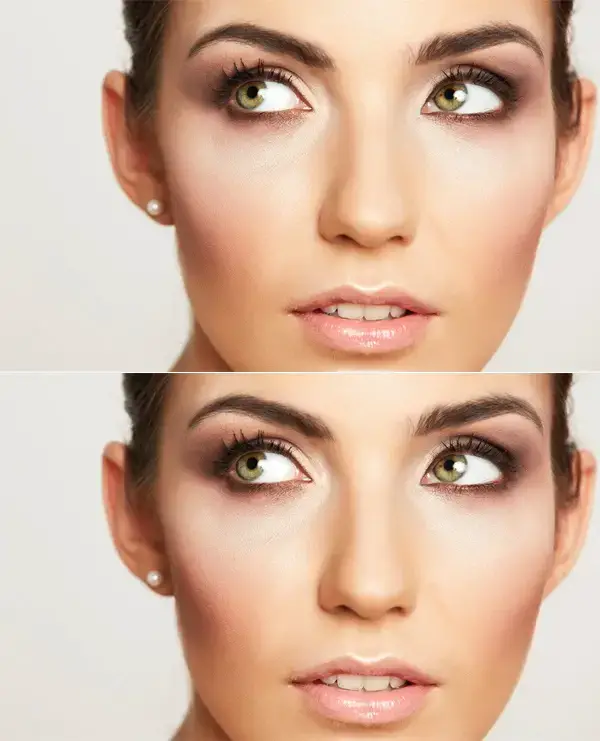
33. Shadow Recovery of Backlight Problem
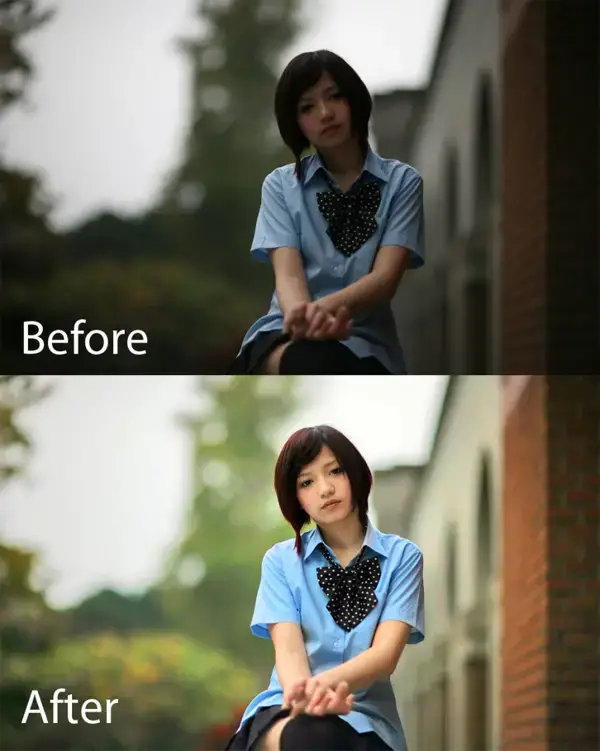
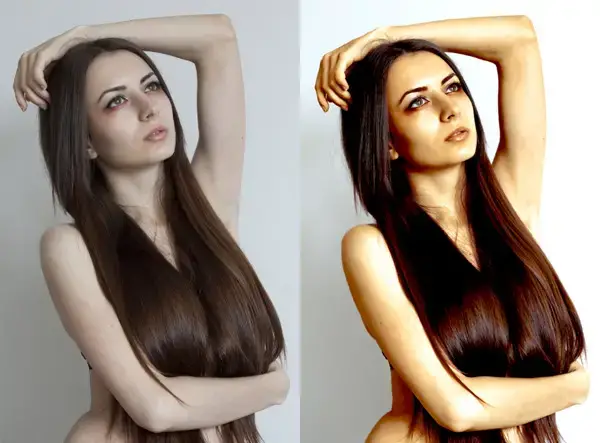
34. Golden Skin Tutorial

35. Photoshop Quick Tip: How to Use a Tilt / Shift Effect on Portraits
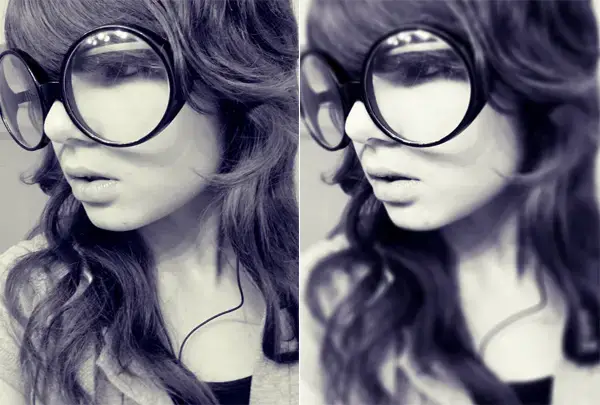
36. Pure White Portrait Retouch
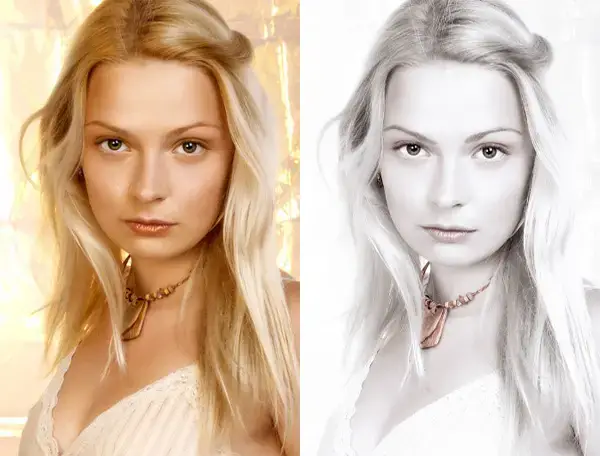
37. Photoshop Quick Tip: Create a Dragan Style Portrait Effect in 5 Steps

38. Basic Photo Editing Tutorial
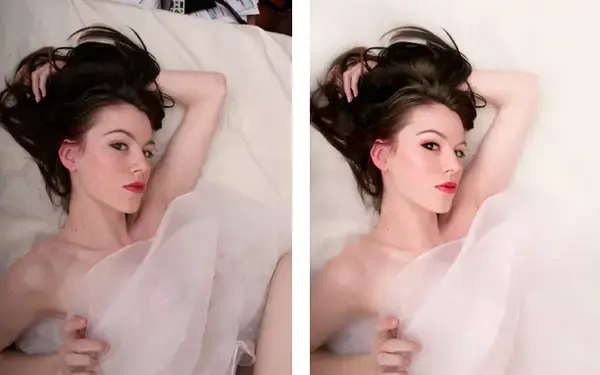
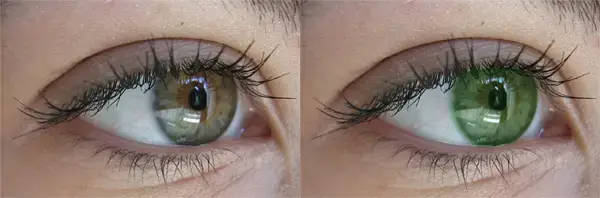
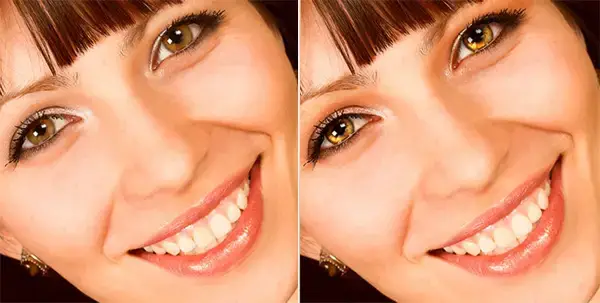
39. Eye Color Change

40. Adding a Realistic Tattoo the Easy Way with Photoshop
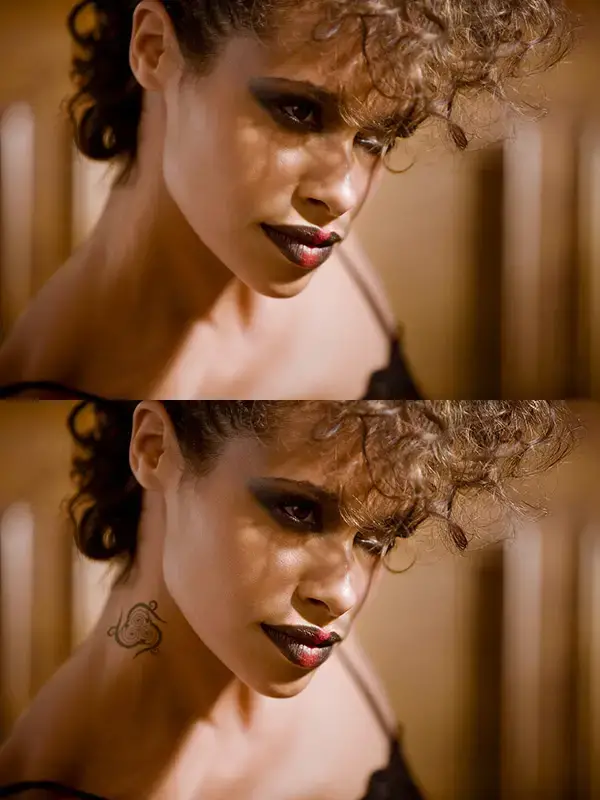
41. Learn how to creatively retouch portrait photos in Photoshop
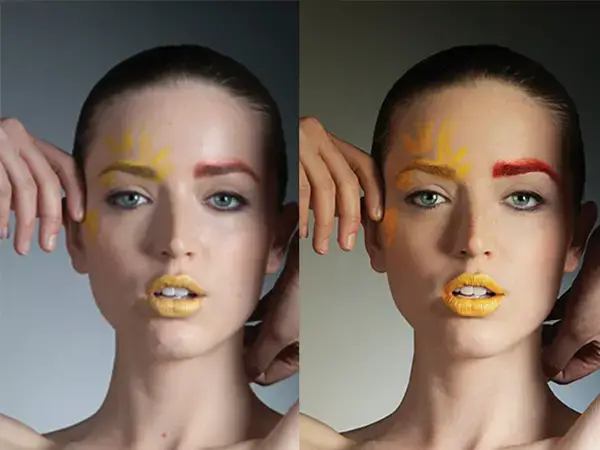
42. Changing Specific Colours MINI TUTORIAL

43. Advanced Colorization Techniques
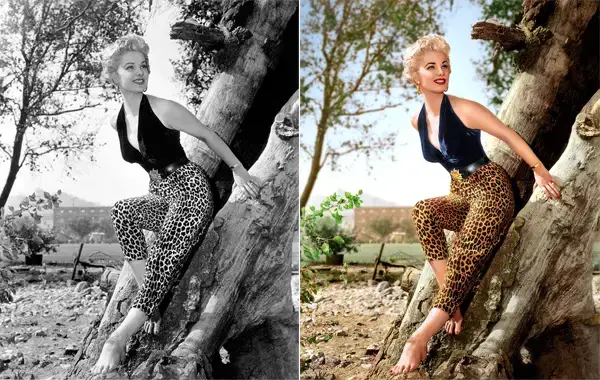
44. Photoshop Makeup Tutorial

45. Realistic Makeup Application in Photoshop
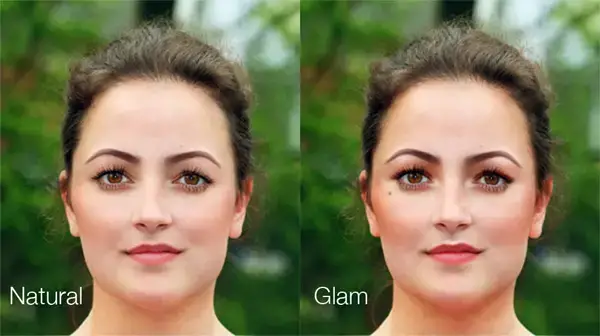
46. Increase Breast Size in Photoshop

47. How to Enhance & Retouch an Image – Photoshop Tutorial
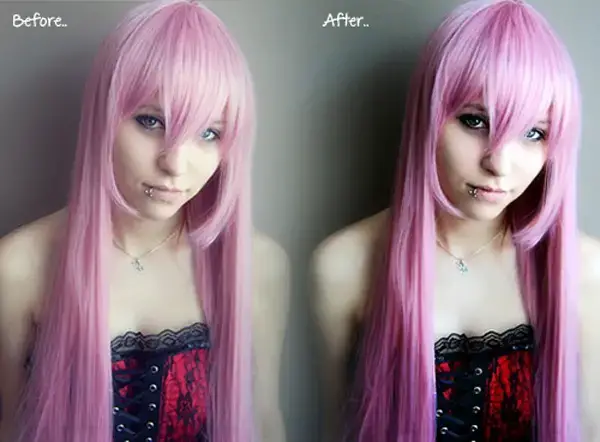
48. Photoshop tutorial: Retouch photos with realistic perfect skin
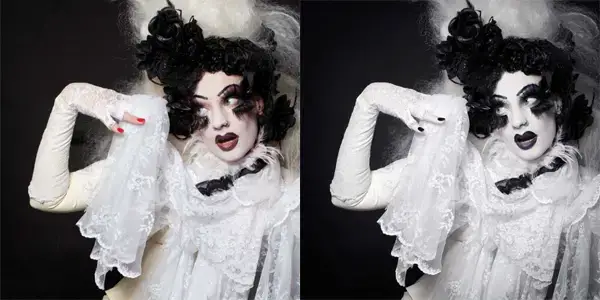
49. How to Make Facial Retouching in Photoshop
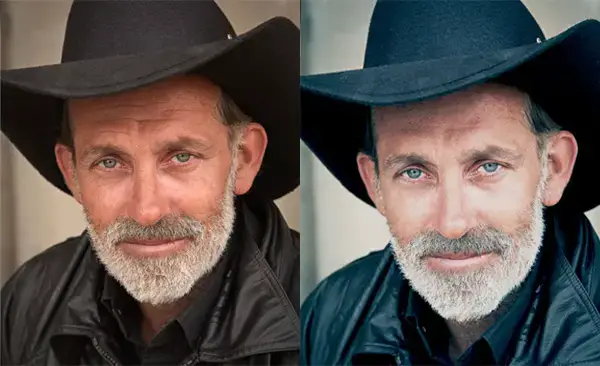
50. Yet Another Colorization Tutorial

Find Something Useful?

Comments

Popular posts from this blog

Use x-ray techniques in Photoshop to show naked skin through clothing

    Do those new naked body scanners have you freaked out at the airports? As far as the TSA is concerned, those x-ray machines are here to stay, but you might as well take comfort in knowing that airport security guards aren't the only ones looking at your private parts. Practically anyone with a computer can manage to see through your clothes, and it's all thanks to a little program called Photoshop. Thanks, Adobe. With a few tweaks using the tools in Photoshop, you can see those boobs in no time, male or female. The video is in German, but it's not hard to figure our what's going on, especially if you're familiar with Photoshop. First, create a few duplicate layers, then get a handle on some of these tools to make the naked body through the clothes: * Auswahl erstellen (Create Selection) * Tonwertspreizung (Input Levels) * Belichtung (Exposure) You can also do this see-through clothing effect in free design programs, such as  GIMP .

Photoshop Shapes – Add, Subtract, Intersect and Exclude

’ve gone ahead and created a new Photoshop document, with white as my background color, and I’ve used the Ellipse Tool to draw a single circular shape (I held down my Alt (Win) / Option (Mac) key as I was dragging out the shape to force it into a perfect circle): A circular shape drawn with the Ellipse Tool. If we look in my Layers panel , we see that my document currently contains two layers – the white-filled Background layer on the bottom and the Shape layer (Shape 1) for my shape directly above it: The Layers panel showing the Shape layer sitting above the Background layer. With the Ellipse Tool still selected, I’ll draw a second similar shape partly overlapping the original: Adding a second shape to the document. By default, Photoshop assumes that each time we draw a new shape, we want to draw a separate, independent shape, and it places the new shape on its own Shape layer. If we look again in my Layers panel, we see that I now have a second Shape layer (S...

How To Create Simple Cover Art Design in Photoshop Photoshop Tutorial

                              Art Design in Photoshop   Photoshop Tutorial