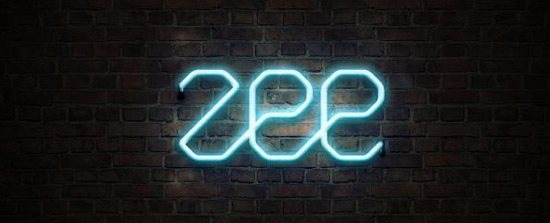
Photoshop Text Effect Tutorials

 If you are looking to learn about grungy metal, glass, water, clouds, fire, wet ink Photoshop text effect tutorials, you will find some by reading up on these tutorials. Try to play around with settings and colors on each of these to end up with your own look and feel.

Hopefully you find something that inspires you, plus maybe a trick or two on how to do something a bit different from what you’re used to. Here the best Photoshop tutorials for making text effects.

1. Wooden Type Treatment
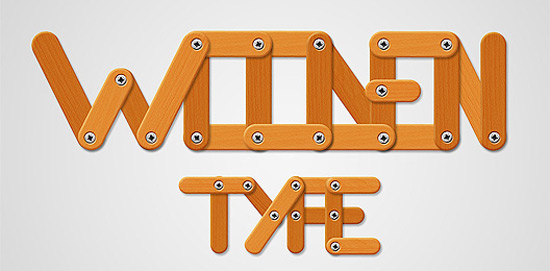
Wooden Type Treatment

2. Remarkable 3D Text
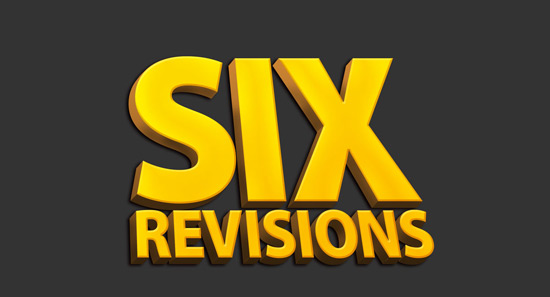
Remarkable 3D Text

3. Cool Wet Ink Typography Effect
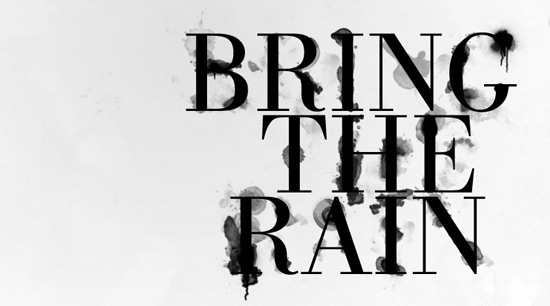
Cool Wet Ink Typography Effect

4. Copper Text Effect
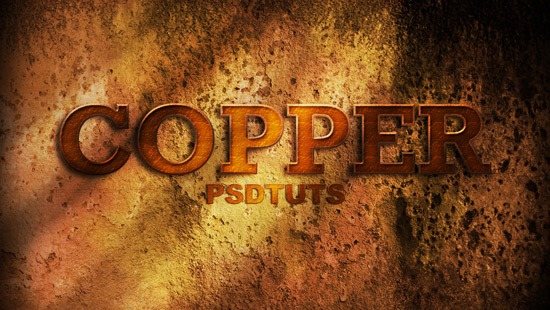
Copper Text Effect

5. High Quality Metal 3D Text
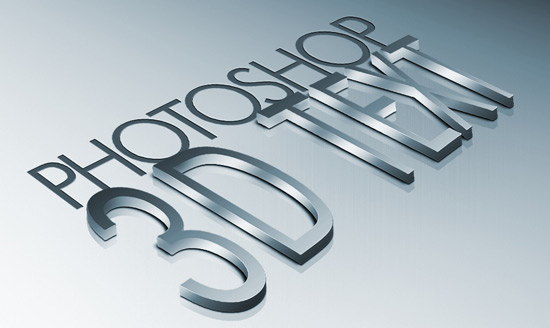
High Quality Metal 3D Text

6. Vanity License Plate
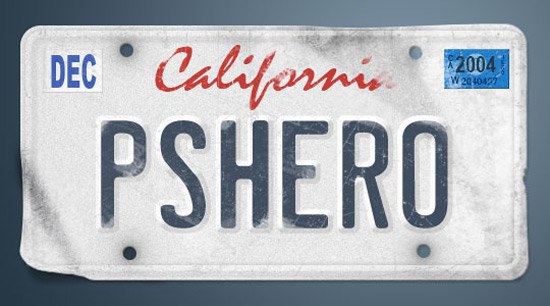
Vanity License Plate

7. Transparent Text Effect with Fresh Grass
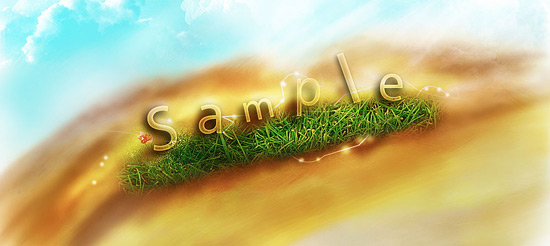
Transparent Text Effect with Fresh Grass

8. Retro Text Effect
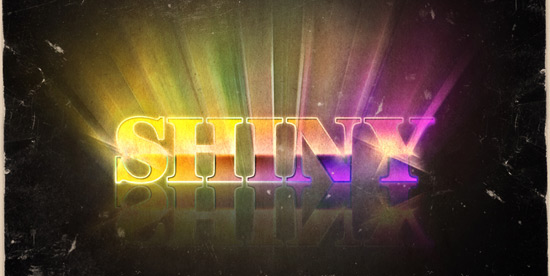
Retro Text Effect

9. Torn Paper Edges
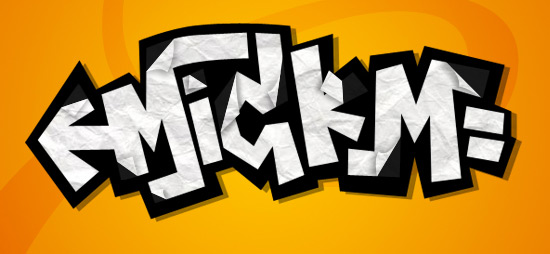
Torn Paper Edges

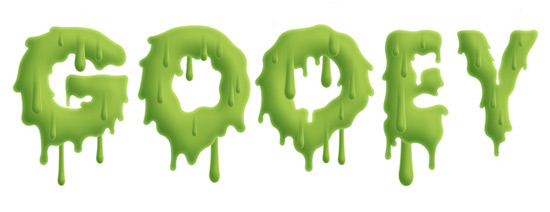
10. Gooey Text

Gooey Text

11. Starry Text Effect in Photoshop

Starry Text Effect in Photoshop

12. Patriotic Text

Patriotic Text

13. Ice Text Effect with Photoshop
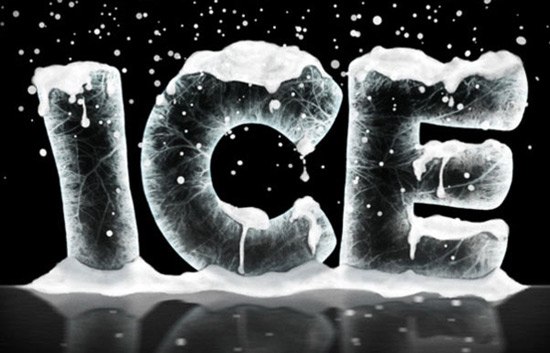
Ice Text Effect with Photoshop

14. Stylish Retro Text Effect
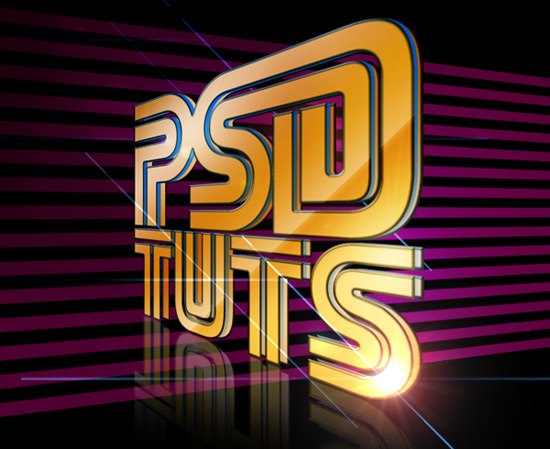
Stylish Retro Text Effect

15. Colorful Glow
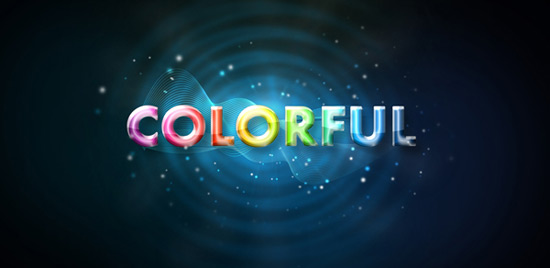
Colorful Glow

16. Semitransparent Amorous Text Effect

Semitransparent Amorous Text Effect

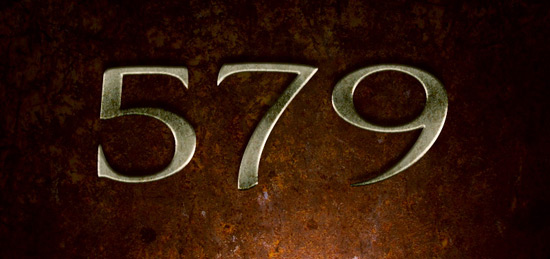
17. Eroded Metal with Photoshop
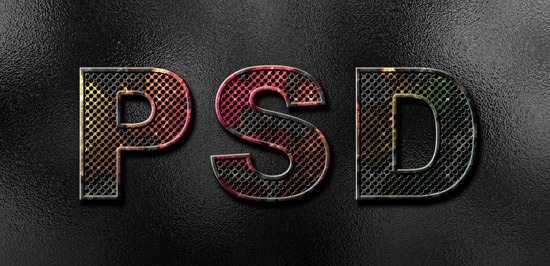
Eroded Metal with Photoshop

18. Horror Style with Dirt and Splatter
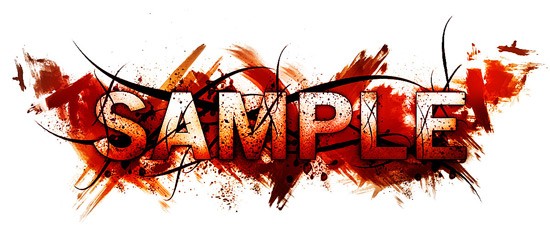
Horror Style with Dirt and Splatter

19. Papercraft

Papercraft

20. Grungy Metal

Grungy Metal

21. Luminous Glass

Luminous Glass

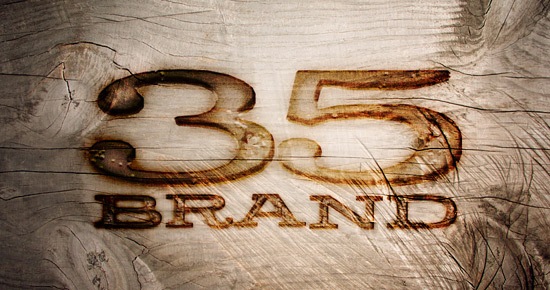
22. Burnt Wood

Burnt Wood

23. Abstract Text Effect

Abstract Text Effect

24. 3D Layered Text Effect
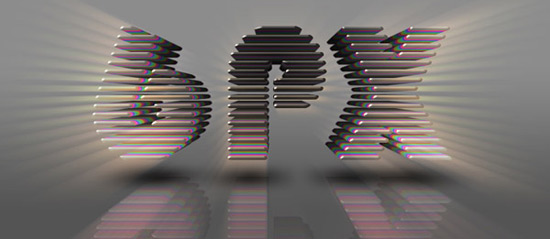
3D Layered Text Effect

25. Metal Text Under 12 O’clock Spot Light
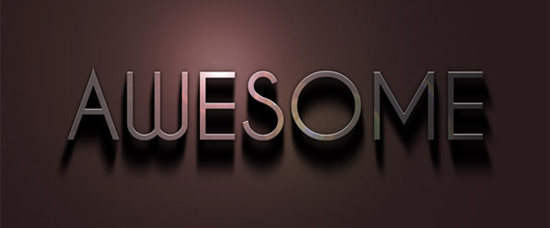
Metal Text Under 12 O'clock Spot Light

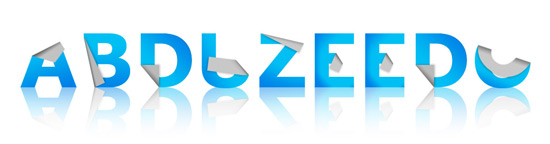
26. Folded Typo

Folded Typo

27. Cloudy Text

Cloudy Text

28. Glowing Text in Space

Glowing Text in Space

29. Patch on Clothes
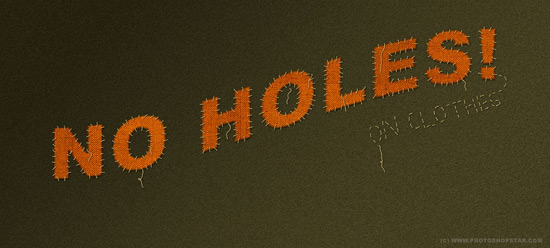
Patch on Clothes

30. Easy Neon Style

Easy Neon Style

31. Jelly Fish Delight
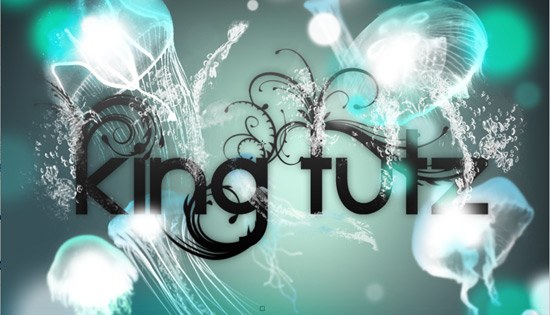
Jelly Fish Delight

32. Advanced Glow Effects
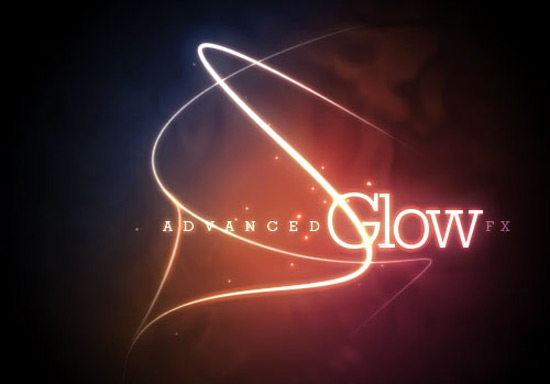
Advanced Glow Effects

33. Maddening Text Effect – Unlimited Variations

Maddening Text Effect - Unlimited Variations

I hope you enjoy these tutorials and find them useful. Thank you for reading!

Comments

Popular posts from this blog

Use x-ray techniques in Photoshop to show naked skin through clothing

    Do those new naked body scanners have you freaked out at the airports? As far as the TSA is concerned, those x-ray machines are here to stay, but you might as well take comfort in knowing that airport security guards aren't the only ones looking at your private parts. Practically anyone with a computer can manage to see through your clothes, and it's all thanks to a little program called Photoshop. Thanks, Adobe. With a few tweaks using the tools in Photoshop, you can see those boobs in no time, male or female. The video is in German, but it's not hard to figure our what's going on, especially if you're familiar with Photoshop. First, create a few duplicate layers, then get a handle on some of these tools to make the naked body through the clothes: * Auswahl erstellen (Create Selection) * Tonwertspreizung (Input Levels) * Belichtung (Exposure) You can also do this see-through clothing effect in free design programs, such as  GIMP .

Photoshop Shapes – Add, Subtract, Intersect and Exclude

’ve gone ahead and created a new Photoshop document, with white as my background color, and I’ve used the Ellipse Tool to draw a single circular shape (I held down my Alt (Win) / Option (Mac) key as I was dragging out the shape to force it into a perfect circle): A circular shape drawn with the Ellipse Tool. If we look in my Layers panel , we see that my document currently contains two layers – the white-filled Background layer on the bottom and the Shape layer (Shape 1) for my shape directly above it: The Layers panel showing the Shape layer sitting above the Background layer. With the Ellipse Tool still selected, I’ll draw a second similar shape partly overlapping the original: Adding a second shape to the document. By default, Photoshop assumes that each time we draw a new shape, we want to draw a separate, independent shape, and it places the new shape on its own Shape layer. If we look again in my Layers panel, we see that I now have a second Shape layer (S...

How To Create Simple Cover Art Design in Photoshop Photoshop Tutorial

                              Art Design in Photoshop   Photoshop Tutorial