
Learn how to create your own custom logos and graphics in Photoshop! Use shapes, type, color, and gradients to make beautiful designs.
Easy | 4 Hours | 5 Sample PSDs
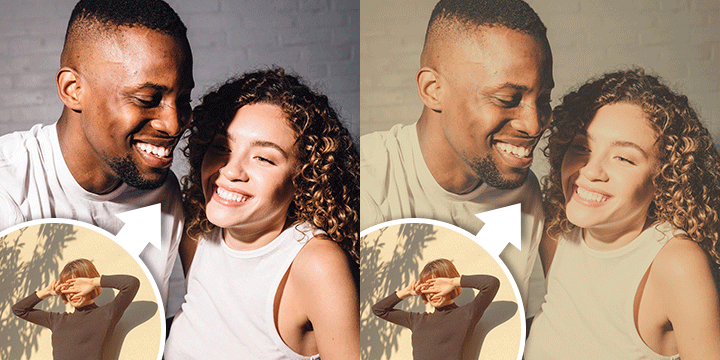
Recreate the color of style and style of any photograph using the color tools in both Lightroom and Photoshop.
Easy | 1 Hour | 8 Sample Images
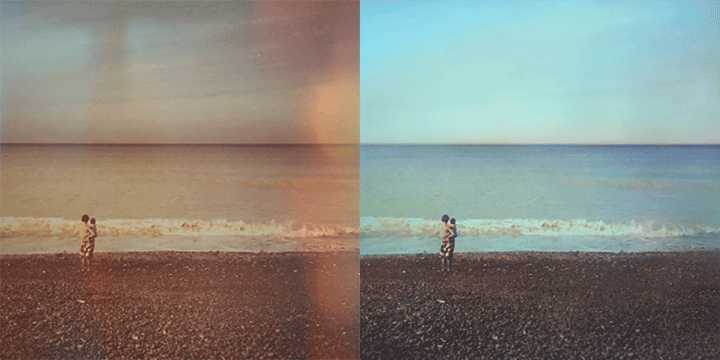
Restore your old and vintage photographs so that they can be shared for generations to come! Learn how to remove scratches and tears, even out lighting, and correct the colors of any paper photo.
Medium | 3 Hours | 4 Sample Images
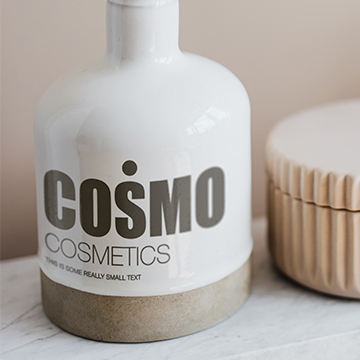
Product mockups can save you and your clients time and money while making it easy to bring a brand, product, or design to life. Learn how to create mockups on billboards, books, packaging, digital displays, and more!
Medium | 2 Hours | 10 Sample Images, 5 PSDs
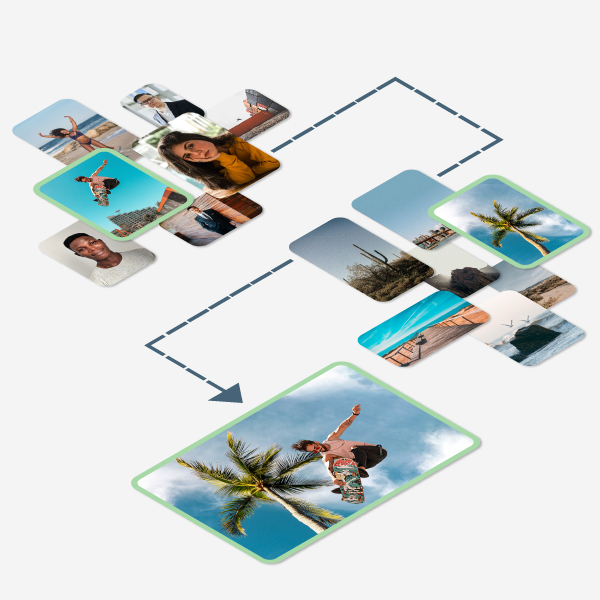
When it comes to realistic compositing, Photoshop can’t do it all. You need to have images that share similar lighting, perspective, color, and more to create a seamless final image. Learn what to look for when choosing the very best images for compositing in Photoshop!
Easy | 2.5 Hours | 21 Sample Images

Learn how to create stunning text effects in Photoshop! From dramatic drop-shadows, to realistic textures, to bold 3D, we cover all the bases to help your letters, words, and phrases pop.
Easy | 2.5 Hours | 3 Sample Images, 8 PSDs
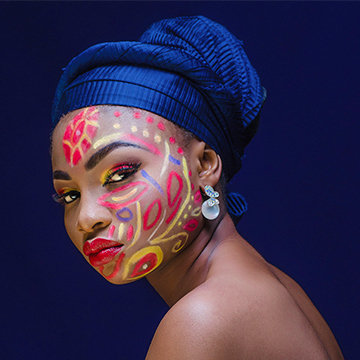
Create colors that pop in any photo! Learn how to enhance colors in both Lightroom and Photoshop while making sure the people in your photos look natural.
Easy | 1 Hours | 4 Sample Images
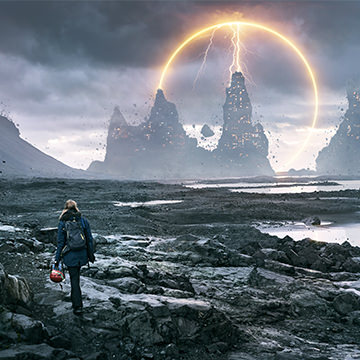
Follow along and create an epic fantasy scene using free stock image assets and some Photoshop savvy! Learn how to cut out and place objects in a new background, create lighting and disintegration effects, create fog and atmosphere, and much more!
Advanced | 2.5 Hours | 8 Sample Images
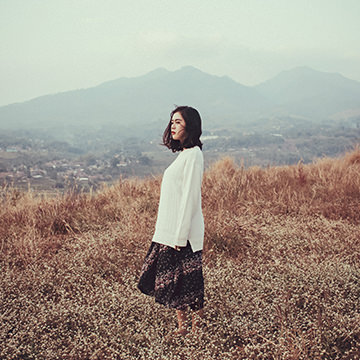
Give your photos a timeless feel with soft and subtle coloring in Lightroom and Photoshop. Learn how to lift shadows to recover detail, reduce contrast for a softer look, and add subtle color toning to the highlights and shadows with our included presets and LUTs.
Easy | 1 Hours | 4 Sample Images
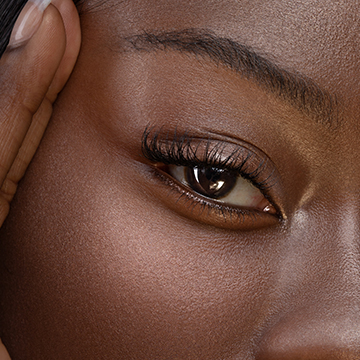
Master a complete, professional retouching workflow in Photoshop. From skin smoothing, to dodging and burning, to frequency separation, we cover it all!
Medium | 2.5 Hours | 1 Sample Image
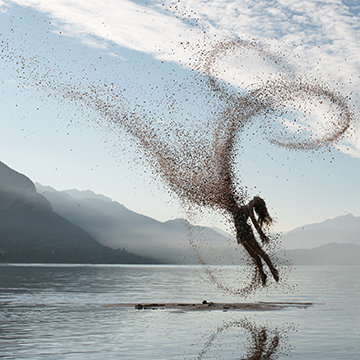
Learn how to create a realistic dispersion effect in Photoshop! Follow along with the sample image and included Photoshop Brushes to make your own amazing effects from scratch.
Medium | 2.5 Hours | 1 Sample Image
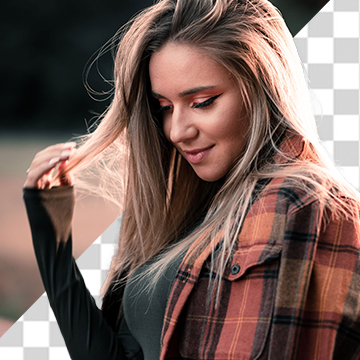
More updates to Photoshop 2020 are here and we’re putting the new and improved Select Subject Tool to the test! How does it hold up? Watch to find out.
Sample Images
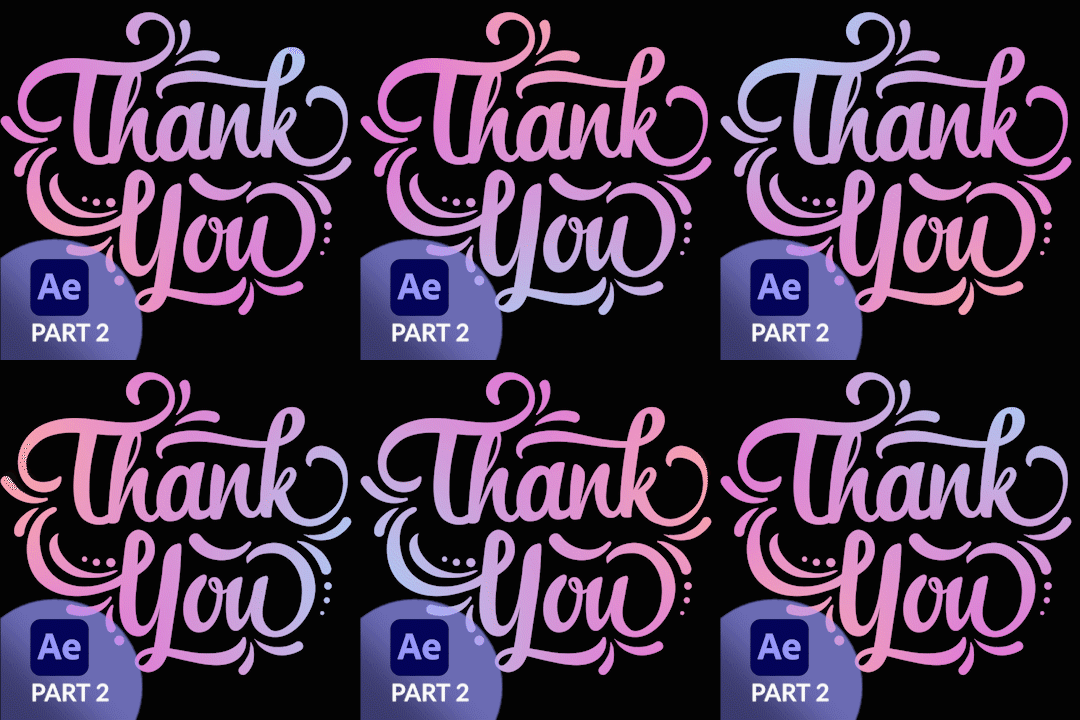
In part two of our Animating Gradients series, we show you how to create a simple and colorful animation in Adobe After Effects.
Sample Images
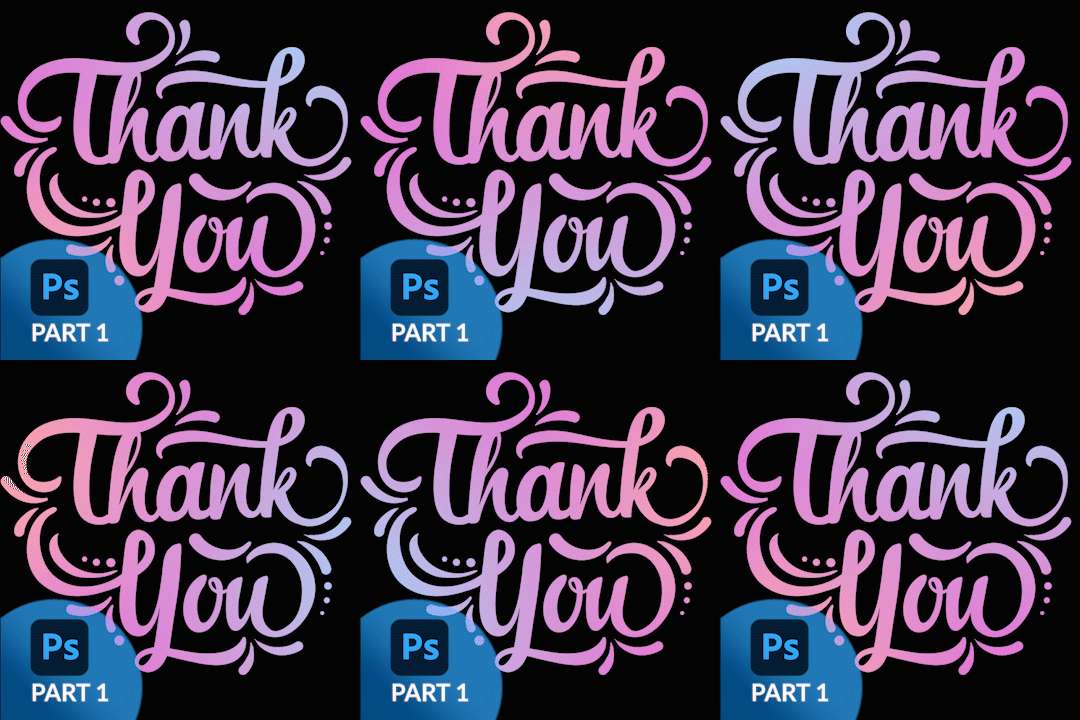
Join us for a two-part series where we create animated text and gradients using Photoshop in After Effects! In this first episode, learn how to cut out text from a background, create custom gradients, and export assets with transparency to use in After Effects.
Sample Images Included
Take the jump from Photoshop into After Effects! Learn how to export out Layers from a Photoshop composite, import them into After Effects, and create a smooth, dynamic animation. Never used After Effects before? No problem.
Intermediate | 3 Hours | 40 Sample Images
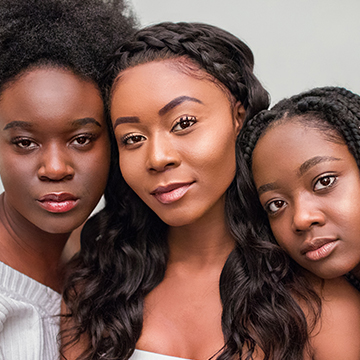
Learn how to sharpen in both Lightroom and Photoshop! And best of all, we reveal our favorite sharpening method that provides the most flexibility, control, and a professional result.
Sample Image Included
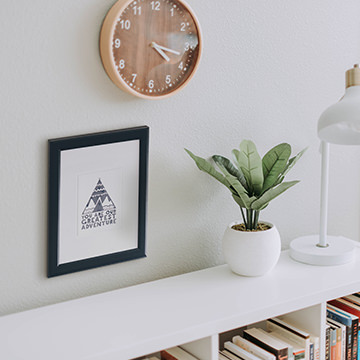
Learn how to place any object into a new environment in perfect perspective! Create seamless, realistic composites with the Vanishing Point Filter in Photoshop.
Sample Images & PSD Included
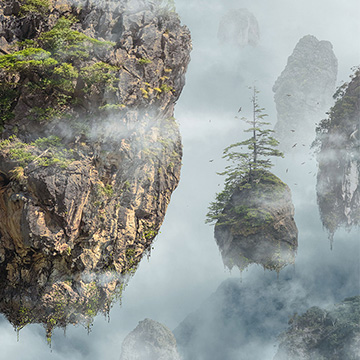
Learn advanced compositing techniques as Photoshop as we show you to transform free stock photos into an epic fantasy landscape!
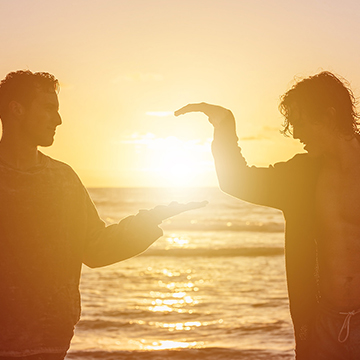
Add gradients to your photo editing toolbox! Learn how to create light rays, brighten a subject, create interesting backgrounds, create epic sunset effects, and more!
Sample Images Included

Learn how to add soft sunset coloring to a portrait, how to add realistic motion blur to an action shot, how to create realistic depth of field in a portrait, and more!
Sample Image Included
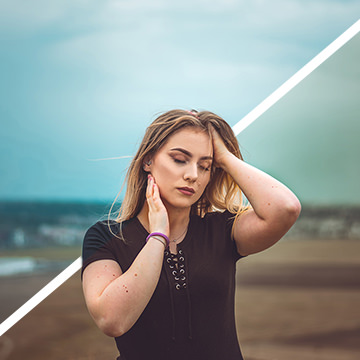
Add beautiful coloring to your photos with Gradient Maps in Photoshop! Learn how to use a Gradient Map to apply different colors to the highlights, midtones, and shadows of an image, and then use Blend If to protect skin tones and dial-in the perfect look.
Sample Image Included

Learn how to edit a portrait, removing common distractions like people in the background, harsh light and glare, and even a tattoo! We also show you a quick and effective technique to add beautiful color toning to your photos.
Sample Image Included
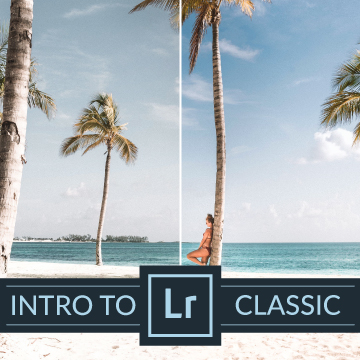
Let’s explore some of the more powerful and precise editing tools that Lightroom has to offer! Learn how to apply adjustments to specific parts of a photo using the Graduated and Radial Filters, the Adjustment Brush, Range Masking, and more.
Sample Images Included
Learn all of the photo editing tools Lightroom Classic offers to help you fix exposure, recover detail, correct colors, color tone, and much more!
Sample Images Included
Thousands of photos to go through after a photoshoot? No problem! Learn how to use Lightroom Classic to quickly sort, filter, and choose your favorite images.
Sample Images Included
Lighroom Classic is a powerful tool for photographers and image makers. Start learning the basics as we show you how to import and organize your photos within Lightroom and on your computer!
Sample Images Included
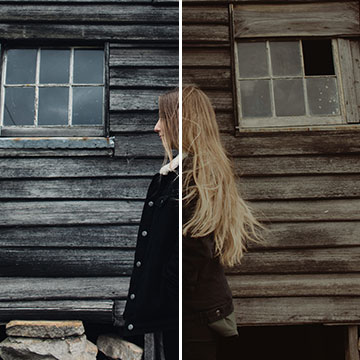
Learn how to recreate coloring from one image to another in Photoshop! Analyze color, highlights, and shadows, and then match the look using Levels Adjustment Layers.
Sample Image Included
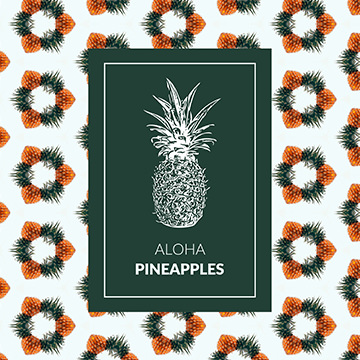
Create from Image is a powerful tool for designers and creators. Learn how to make custom patterns, vectors, and color themes from any image in Photoshop!
Sample Image Included
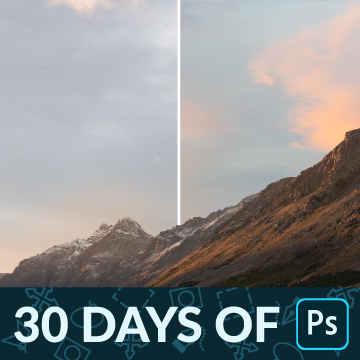
Day 30 of 30 Days of Photoshop! When it comes to landscapes, the weather doesn’t always cooperate. Learn how to add more interest to a photo by swapping out the sky for one with more color and detail.
Sample Images Included
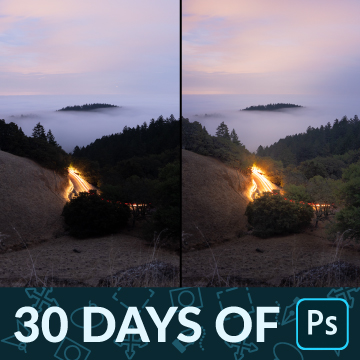
Day 29 of 30 Days of Photoshop! Recover beautiful details in clouds and trees as we edit a landscape image with Adobe Camera RAW and Photoshop.
Sample Image Included
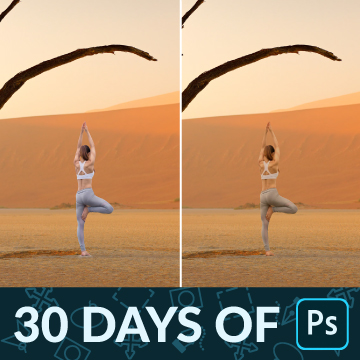
In Day 28 of 30 Days of Photoshop, learn how to perfectly match light, color, and contrast for a seamless composite photograph.
Very good tutorial 👌
ReplyDeleteNice job
ReplyDeleteVery infomative
ReplyDelete