Photo Effects #
Redwood Fairytale Photoshop Action (affiliate link)
This Photoshop action is bound to give your portraits and nature photography a fairytale look.

Toy Camera Photoshop Action (affiliate link)
Choose your photo, hit the action button, and your photo instantly turns into a toy camera snapshot.

Pinhole Photography Action (affiliate link)
This simple preset produces a Pinhole camera look with just a few clicks.

Watercolor Photoshop Action (affiliate link)
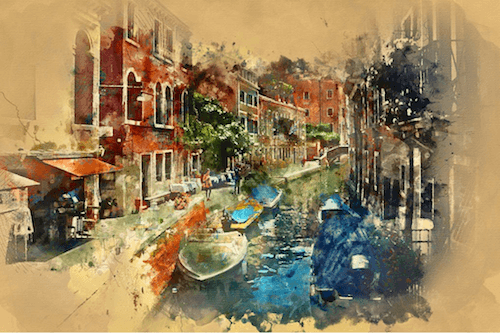
Turn your photo — or only parts of it — into a watercolor painting that looks as if it comes straight out of an artist’s treasured sketchbook. To apply the effect, brush onto the areas you want to turn into watercolor art and play the action.
Instagram your images using Photoshop

How to achieve the Instagram filter effect “Nashville” on your images.
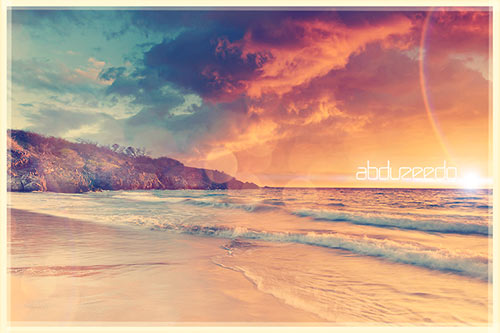
Create an artistic effect by using Masks and Watercolor brushes.

How to Create Tilt-Shift in Photoshop
Tilt-shift is all about how to make large, real-life objects look miniature.

A Lens Flare, a bokeh brush, one solid color and the layer blending mode Soft Light creates a dreamy effect.


Create A Simple Lomo Photo Effect
Use the Actions feature of Photoshop to create a Lomo Photo Effect.

How To Create a Colorful Fluoro Duotone Photo Effect
Get back straight to the 80s to play with vibrant fluoro colours.

Tutorial: Retro Lomo Effect in Photoshop
The lomo effect is an over saturated photo with high contrast, unique colors and strong vignette.
Vintage Photo Effect in Photoshop
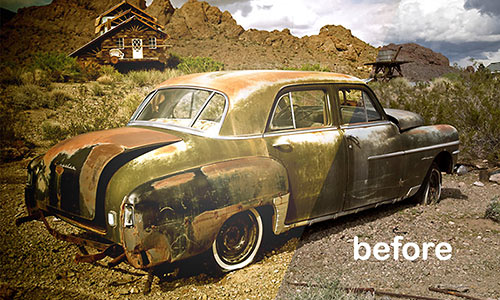
Use image adjustments, adjustment layers and layer styles to apply the vintage effect on a regular photo

How To Create a Realistic Pencil Sketch Effect in Photoshop
Transform a photograph into a hand drawn pencil sketch.

Manipulate a Portrait Photo to Create a Splatter Paint Effect
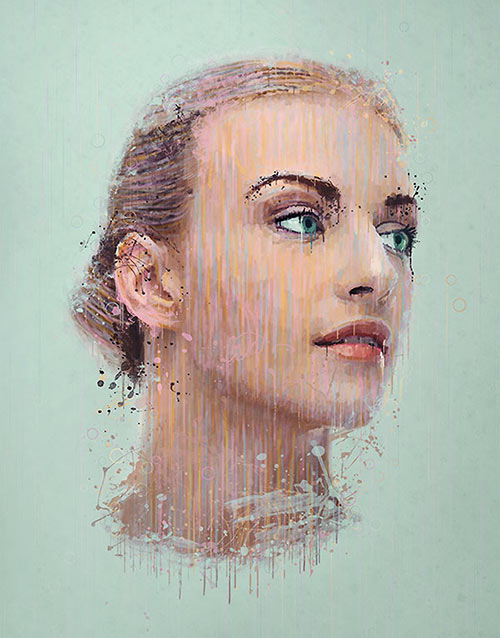
How to manipulate a portrait photo to create a splatter paint and drip effect in Photoshop.
Tutorial: Create 3D Anaglyph Effect in Photoshop
Learn how to create a 3D anaglyph effect in Photoshop.

Create retro photos with ‘light-leak’ in Photoshop
Recreate the Instagram look in Photoshop, so you can have more control over the output than with the app itself.

How to Create a Natural Pastel Photo Effect in Photoshop
This tutorial will walk you through creating your very own pastel photo effect in Photoshop.

Add Rays Of Sunlight To A Photo With Photoshop
In this photo effects tutorial, you learn how to easily add rays of sunlight to an image.

How to Create a Faded Film Look in Photoshop
How you can create a Faded Film look from scratch.

How to Create a Cinematic Effect in Photoshop
Easily create this nice cinema-inspired look in Photoshop.

How to Create a Vintage Black & White Effect in Photoshop
How to create a black & white conversion that has sort of a vintage or film-inspired effect.

In this tutorial you will earn how to achieve a sweet chocolate effect for skin tone.

Image Enhancement And Correction #
Using Textures & Blending Modes in Photoshop
How to combine textures and blending modes.

Add detail-enhancing effects to your images
How to to add HDR-style detail-enhancing effects to your images.

Correcting Converging Verticals in Photoshop
Correct the problem of the converging verticals effect.

Landscape Photography – Basic Editing
How to make the “normal” adjustments to your photo so that it looks as it is supposed to. That includes: contrast, color balance, sharpening and saturation.

Landscape Photography Editing – Gradients & Adjustments
How to effectively use gradients and adjustment layers together to selectively edit parts of your landscape photos.

3 Easy Ways to Lighten a Photo in Photoshop
Three of the easiest and most effective methods to lightening a photo.

Correct Perspective Distortion of Buildings
Learn how to fix a perspective distortion.

Take a look at color correction and adjusting white balance in your photos to get amazing color and richness of tones.

Creative Grading Techniques for Images
Explore a way to add creative color grading onto a desaturated dusk image.

How to Create a Soft Vintage Photo Effect in Photoshop
Walk through the process of creating a soft vintage effect in Photoshop (or download this effect as a Photoshop action).

4 Ways to Remove Distracting Objects in Photoshop
Photoshop can help remove those distracting objects.

How to Use Focus Area Selection in Adobe Photoshop
Learn how to allow automated selections of elements within an image that are in focus.

5 Ways to Color Correct Beautifully in Photoshop and Remove Any Color Cast
This tutorial will show you 5 techniques that help you reduce or remove a color cast in your image

A Practical Guide to Creating Superresolution Photos with Photoshop
Learn how to enhance images just like in the movies.

Tips for Enhancing Night Sky Photography in Photoshop
Learn some important steps of enhancing a night sky photo in this tutorial.

Photo Manipulation #
How To Create a Movie Style Photo Effect in Photoshop
Create a cool cinematic movie effect with high contrast and blueish tones.

Create a Realistic Broken Glass Effect in Photoshop
How to apply a realistic broken glass effect to a background image using Photoshop.

Design Vintage Artwork With Old Newspaper
All the steps to Design this Watercolour Vintage Artwork with Old Newspaper in Photoshop.

Learn how layer blend modes make it easy to add a popular lens flare effect to a photo without making any permanent changes to our image.

How to Create Super-Malleable Effects with Colorful Lines
Learn how to create these fantastic colorful effects using only Photoshop.

Design a Colorful Illustration Using Patterns and Shapes
A lot of new techniques to design a illustration that incorporates patterns, coloring, as well as 3D shapes.

Make a Trendy Double Exposure Effect in Adobe Photoshop
Create a trendy double exposure effect in Adobe Photoshop with the help of Blending Modes and Clipping Masks in a few steps.

Antique a Photo Using Textures in 3 Quick Steps
Create an old photo in Photoshop with a couple of adjustment layers and a good grunge texture.
4 Ways to Remove Distracting Objects in Photoshop
Photoshop can help remove those distracting objects.
How to Use Focus Area Selection in Adobe Photoshop
Learn how to allow automated selections of elements within an image that are in focus.
5 Ways to Color Correct Beautifully in Photoshop and Remove Any Color Cast
This tutorial will show you 5 techniques that help you reduce or remove a color cast in your image
A Practical Guide to Creating Superresolution Photos with Photoshop
Learn how to enhance images just like in the movies.
Tips for Enhancing Night Sky Photography in Photoshop
Learn some important steps of enhancing a night sky photo in this tutorial.
Photo Manipulation #
How To Create a Movie Style Photo Effect in Photoshop
Create a cool cinematic movie effect with high contrast and blueish tones.
Create a Realistic Broken Glass Effect in Photoshop
How to apply a realistic broken glass effect to a background image using Photoshop.
Design Vintage Artwork With Old Newspaper
All the steps to Design this Watercolour Vintage Artwork with Old Newspaper in Photoshop.
Learn how layer blend modes make it easy to add a popular lens flare effect to a photo without making any permanent changes to our image.
How to Create Super-Malleable Effects with Colorful Lines
Learn how to create these fantastic colorful effects using only Photoshop.
Design a Colorful Illustration Using Patterns and Shapes
A lot of new techniques to design a illustration that incorporates patterns, coloring, as well as 3D shapes.
Make a Trendy Double Exposure Effect in Adobe Photoshop
Create a trendy double exposure effect in Adobe Photoshop with the help of Blending Modes and Clipping Masks in a few steps.
Antique a Photo Using Textures in 3 Quick Steps
Create an old photo in Photoshop with a couple of adjustment layers and a good grunge texture.

Transform a Photo into a LEGO Block Piece of Art in Adobe Photoshop
Use Photoshop to build a LEGO version of a photo. Use some filters and shadowing techniques to create the appearance of building a photo replica with hundreds of tiny plastic bricks.

How To Create a Text Portrait Effect in Photoshop
Create a cool portrait effect using a long passage of text that bends and deforms around the contours of the face.

Surreal Kaleidoscope Portrait Photoshop Tutorial
Learn how to create an amazing surreal portrait in Photoshop using abstract shapes.

How to Make a Realistic Watercolor Painting in Photoshop
Create a watercolor portrait of a Jaguar using some splatters and textures.

How To Create a Distorted VHS Effect in Photoshop
Mimicking the distortion effect of VHS tapes in Adobe Photoshop.

Learn Advanced Compositing Techniques in Photoshop
Learn how to incorporate different elements into one image and get a dreamy, surreal atmosphere inspired by nature.

Tutorial: How To Create Self-Portrait Sketches
Learn how to shoot and process your images to turn your self-portrait photos into fine art.

How to Fake a ‘Past Vs. Present’ Picture-in-Picture Photo
How to create a composition image within image in Photoshop.

How To Create Big, Dramatic Hair In Photoshop
A cool and hairy portrait composite tutorial you can do with Adobe Photoshop.
Comments
Post a Comment