How to blend pictures together in Photoshop
A really powerful tool for collaging and compositing in Photoshop is layer masks. When we want to combine photos, we combine layer masks and gradients, it’s laughably easy to create stunning looking composited that are actually very easy to do. Check out this tutorial to get your creative motors running.
Step 1
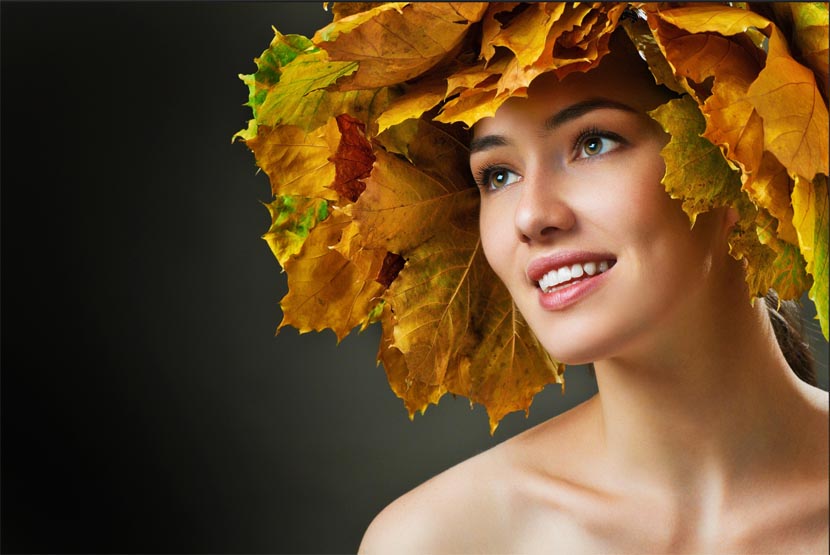
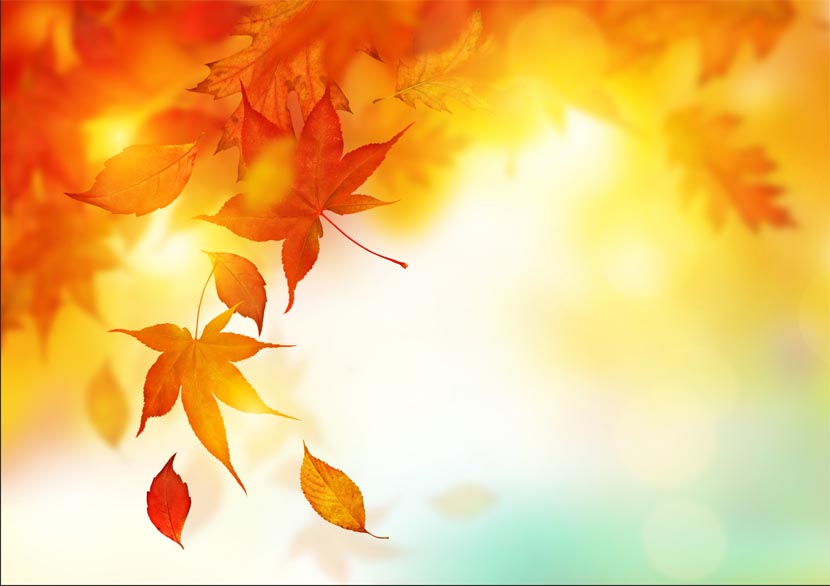
First thing you will need is 2 images that will blend together nicely.
Make sure they are both in the same resolution (72 dpi for the web) and color-space (RGB in this case). Open both these documents in Photoshop.
These images are from Adobe Stock
Step 2 Combine the 2 images together
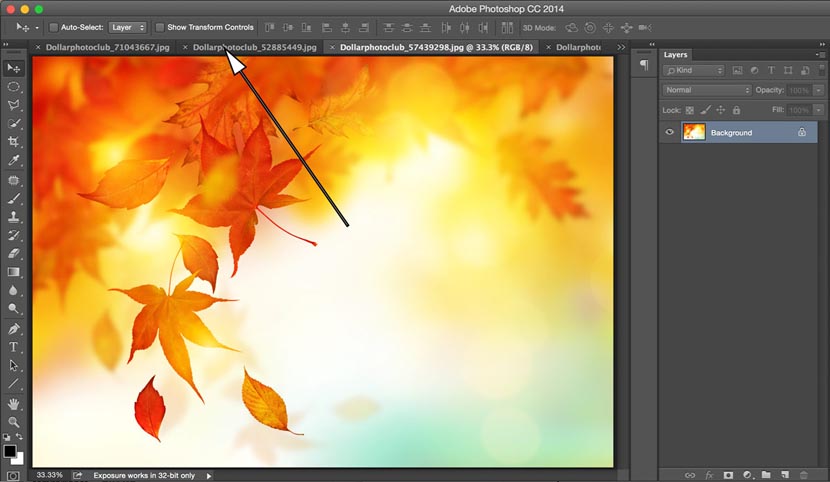
We will want to combine both images into 1 document. Choose the Move tool from the left toolbox: “V” key.
(CS6 and CC)If you have the application frame on (shown),
Put your curser in the middle of the first image. Click-hold-Drag into the tab at the top for the second window as shown with the arrow below, (don’t let go yet) Wait for the image to come to the front. Drag and release in the middle of the new document to combine the two images into one document.
If you are on earlier version of Photoshop without the application frame: Drag one image into the other window and a new layer will be created automatically.
Tip: To center the new image in the window hold down the Shift key while dragging.
(If you are stuck, I have made a beginners tutorial on how to combine photos in Photoshop here)
Step 3
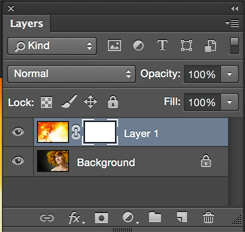 We will now have 2 layers in the same document
We will add the Layer Mask
Click on the add layer mask button
This will create a new layer mask. A layer mask is transparent. When you paint black into the mask it allows the image underneath to show through. Where it is white, the underlying layer will be hidden.
Step 4
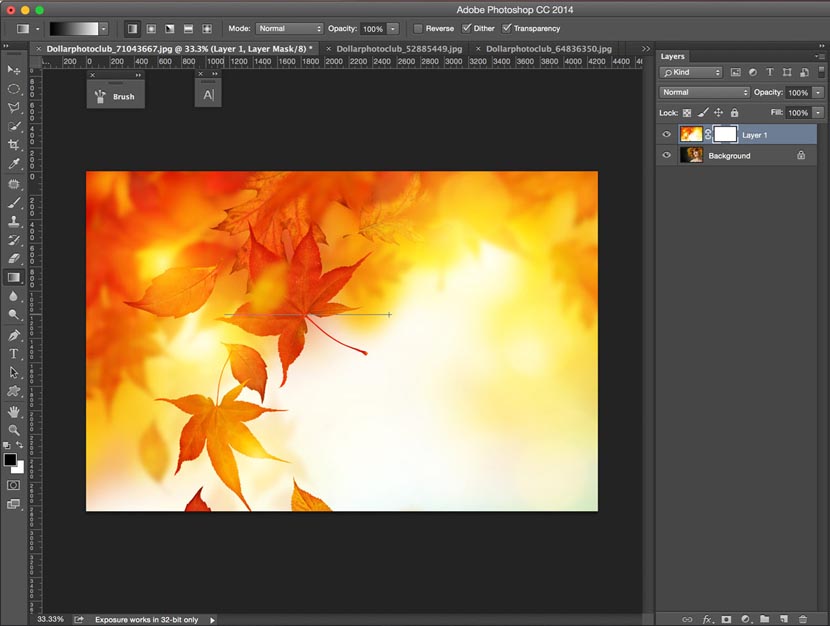
Press the “G” key to select the gradient tool. Make sure the foreground and backgrounds are set to black and white. “D” key. Select linear gradient and foreground to background.

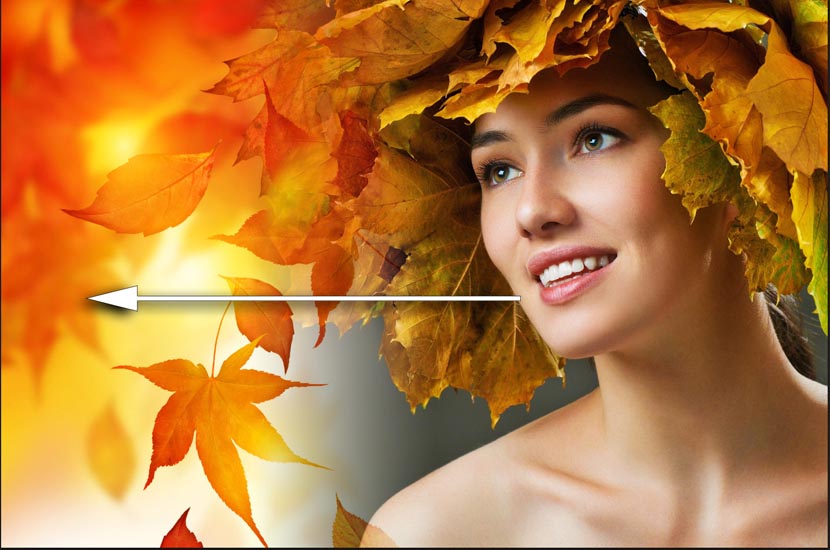
Now drag the gradient across the image.
Step 5
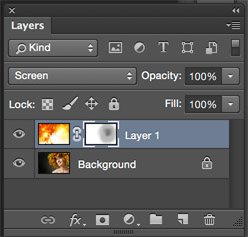
You will now see the two images blend together and the mask will have a gradient in it as shown
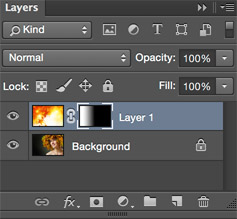

You can see the gradient in the layer thumbnail and the result on the image. Where it is white, the top image shows and where it is darker the back shows through. Experiment with different angles and start and end positions. Because a mask is non-destructive, you can experiment as much as you like with different gradients in the mask,


Step 6
EXTRA CREDIT!
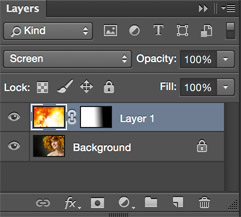
Try changing the blending mode to something different for a different result, in this case I liked what Screen mode did to the feel of the image.

Step 7
You may also use any of the brush tools on the mask. Black will “paint away” the image and white will “paint it back”. Use a soft brush for best results.

I hope you enjoyed this tutorial and let me know in the comments if you want more on collaging and compositing techniques. This is one of my specialties. I am adding new tutorials here at photoshopCAFE every week!
Comments
Post a Comment