How to Create a Triangle Pixelation Effect in Photoshop

Step 1

Start by opening any photo you want into Photoshop. You should resize the image to your final output size before you continue. This is the photo that we’ll be using.
image

Step 2

Duplicate your background layer twice.
image

Step 3

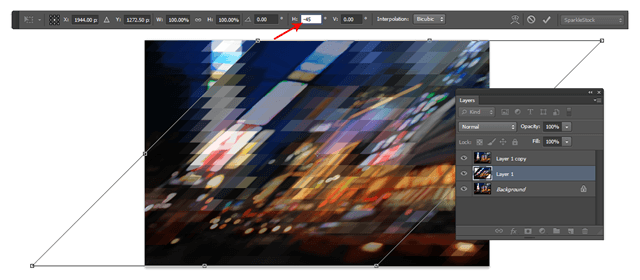
Activate the Transform tool (Ctrl/Cmd+T or Edit > Free Transform) then set the horizontal skew value to 45ยบ.  The horizontal skew setting is located in the options bar when you have your Transform tool activated. Press Enter to apply the transformation.
image

Step 4

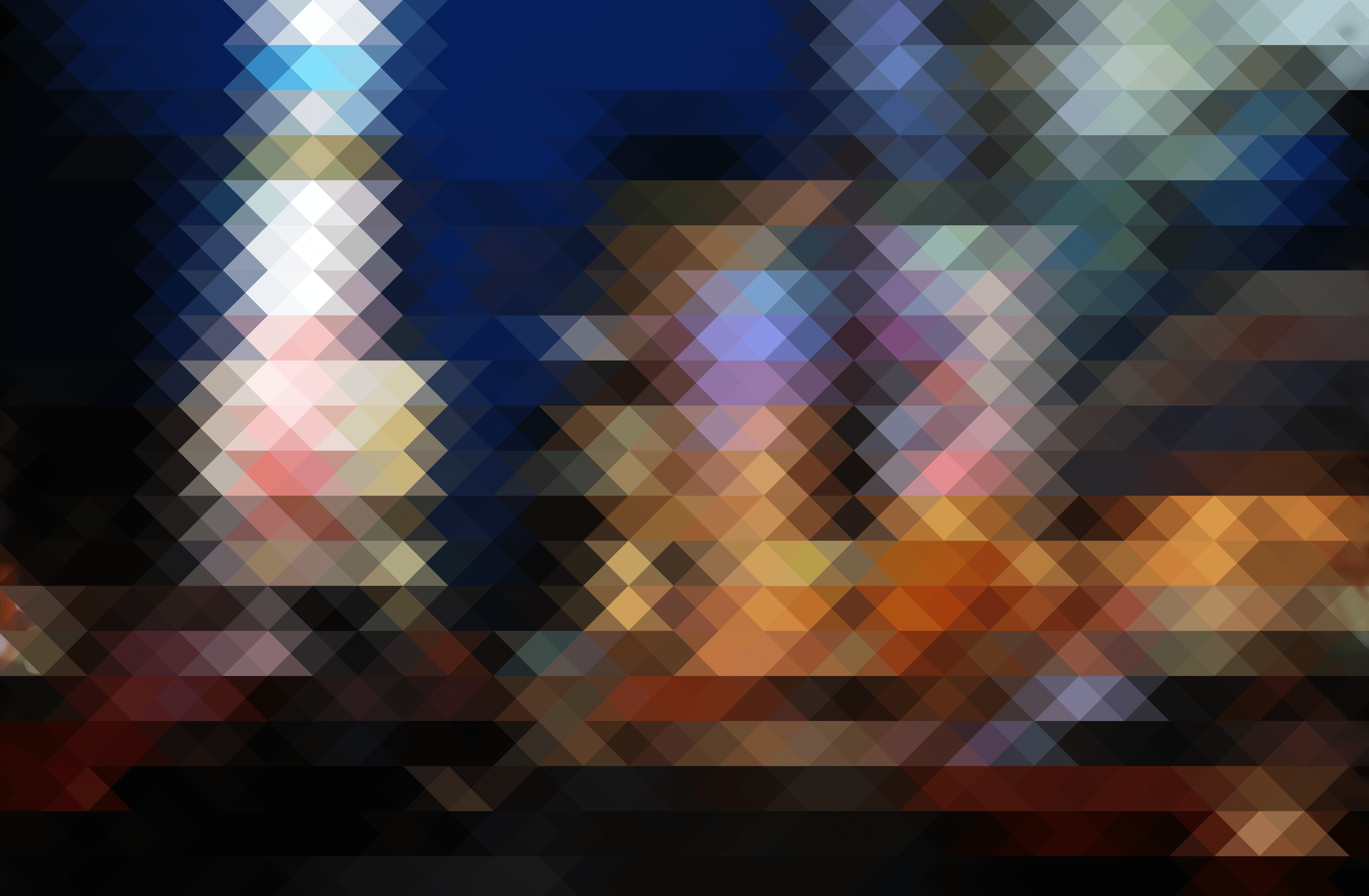
Go to Filter > Pixelate > Mosaic. Adjust the cell size setting to anything you like then click OK.
image

Step 5

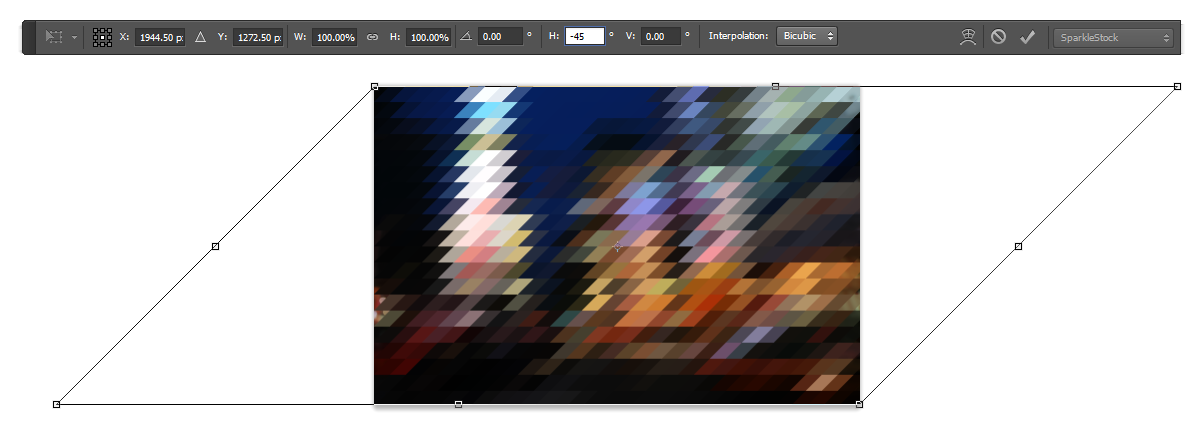
Next, we’re going to transform it the opposite way. Activate the Free Transform tool (Ctrl/Cmd+T or Edit > Free Transform) then set the horizontal skew setting to –45ยบ. Press enter to apply the transformation.
image

Step 6

Set this layers opacity to 50% then select the middle layer. We’re going to be doing the same steps but with transformations done
image

Step 7

With the middle layer selected, activate the Free Transform tool (Ctrl/Cmd+T or Edit > Free Transform) then set the horizontal skew to –45ยบ.
image

Step 8

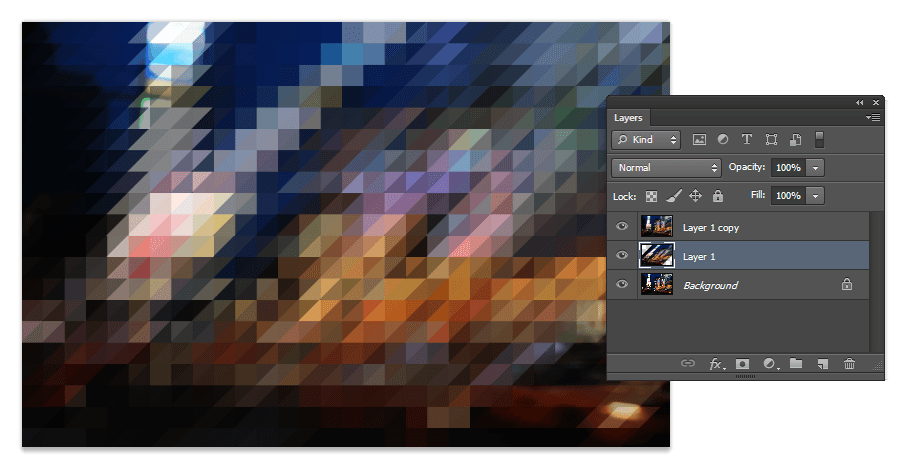
Apply the same mosaic filter again. You can do this quickly by pressing Ctrl/Cmd+F or by going into the filter menu and selecting the first filter in the menu. Photoshop automatically places your last used filter on the top of this menu.
image

Step 9

Use the Free Transform tool (Ctrl/Cmd+T or Edit > Free Transform) to transform the layer back to its original shape by setting the horizontal skew value to 45ยบ.
image

Step 10

We’re pretty much done but if you zoom, you can see that the edges don’t really line up. To fix this, press the left or right arrows on your keyboard to nudge the layer until the intersections align.
Here’s how the image looks like so far.
image

Step 11

If you’ll be using this as a background, you might want to apply a faded/vintage film effect. We used the Vesper effect from the Instagram Video Photoshop actions and completed the look with some text using the Abolition font.
New York City Poster

Comments

Popular posts from this blog

Use x-ray techniques in Photoshop to show naked skin through clothing

    Do those new naked body scanners have you freaked out at the airports? As far as the TSA is concerned, those x-ray machines are here to stay, but you might as well take comfort in knowing that airport security guards aren't the only ones looking at your private parts. Practically anyone with a computer can manage to see through your clothes, and it's all thanks to a little program called Photoshop. Thanks, Adobe. With a few tweaks using the tools in Photoshop, you can see those boobs in no time, male or female. The video is in German, but it's not hard to figure our what's going on, especially if you're familiar with Photoshop. First, create a few duplicate layers, then get a handle on some of these tools to make the naked body through the clothes: * Auswahl erstellen (Create Selection) * Tonwertspreizung (Input Levels) * Belichtung (Exposure) You can also do this see-through clothing effect in free design programs, such as  GIMP .

Photoshop Shapes – Add, Subtract, Intersect and Exclude

’ve gone ahead and created a new Photoshop document, with white as my background color, and I’ve used the Ellipse Tool to draw a single circular shape (I held down my Alt (Win) / Option (Mac) key as I was dragging out the shape to force it into a perfect circle): A circular shape drawn with the Ellipse Tool. If we look in my Layers panel , we see that my document currently contains two layers – the white-filled Background layer on the bottom and the Shape layer (Shape 1) for my shape directly above it: The Layers panel showing the Shape layer sitting above the Background layer. With the Ellipse Tool still selected, I’ll draw a second similar shape partly overlapping the original: Adding a second shape to the document. By default, Photoshop assumes that each time we draw a new shape, we want to draw a separate, independent shape, and it places the new shape on its own Shape layer. If we look again in my Layers panel, we see that I now have a second Shape layer (S...

How To Create Simple Cover Art Design in Photoshop Photoshop Tutorial

                              Art Design in Photoshop   Photoshop Tutorial